WhatsApp templates
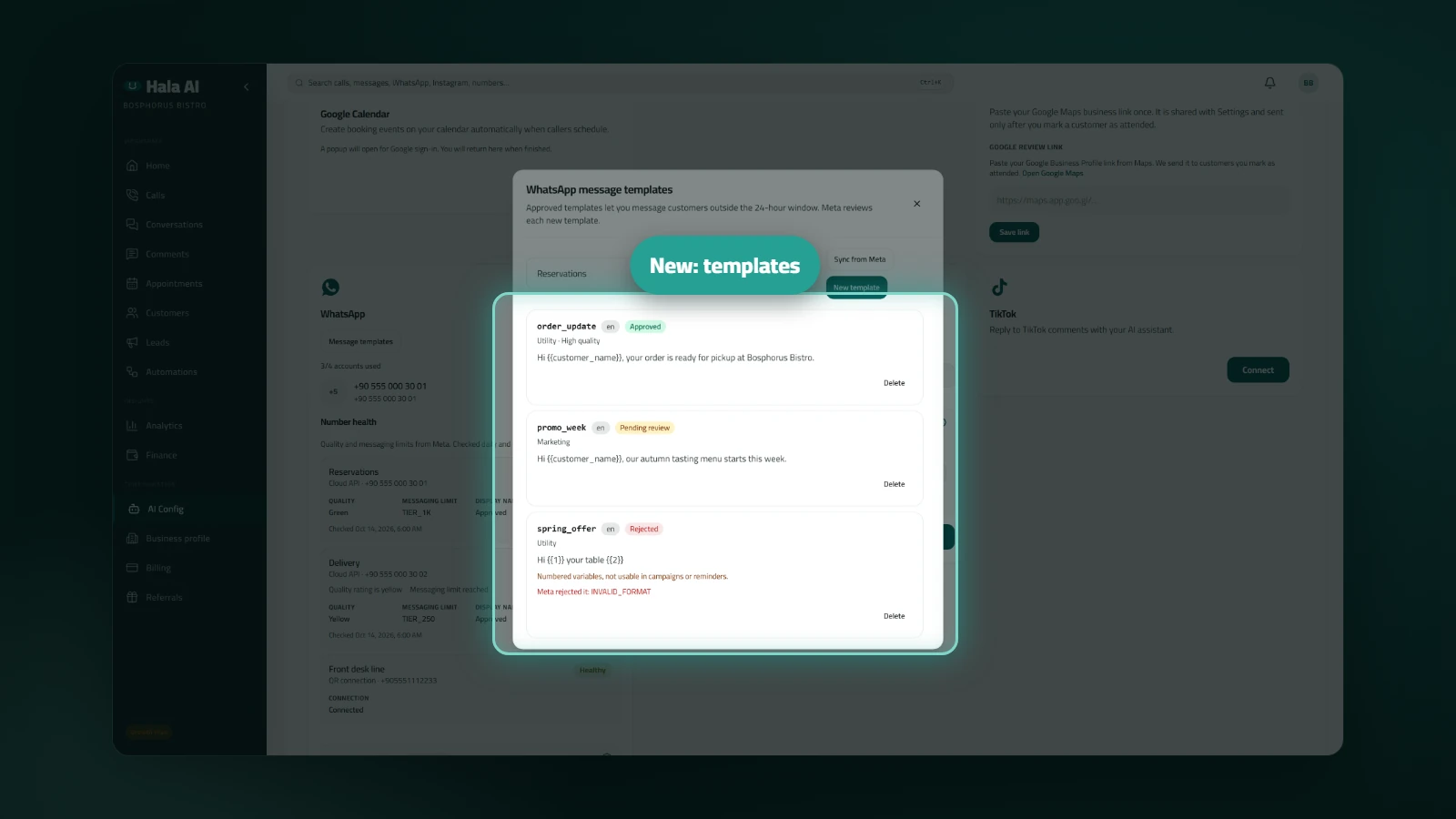
Message templates are the messages WhatsApp allows outside the 24-hour window that follows a customer's last message, such as order updates. Create them here, submit them for review, and track each template's status and quality in one list.
Where to find it
Open AI Config, then the Integrations tab and the Channels section. In the WhatsApp card, click Message templates. The list works for official WhatsApp numbers; a QR-connected number shows a short note instead.
How to use it
- Click New template and enter a name in lowercase letters, then write the message.
- Where a value should go, add a variable such as {{customer_name}} and enter an example value. The preview updates as you type.
- If you want, add a header, a footer and up to three quick-reply buttons.
- Submit the template for review. The list shows Pending review, Approved or Rejected. A rejected template shows the reason WhatsApp gave.
- Sync to refresh the statuses. Deleting a template removes its name in every language at WhatsApp.
Limit: a template that uses numbered variables is listed with a note after it is synced from WhatsApp. It can start a new chat, but campaigns and reminders cannot use it.
Who it helps: businesses that message customers after the 24-hour window, such as order updates, and need to see which templates are approved before they send.